How to Add Books to Your Lnkk.it: The Complete Step-by-Step Guide for Authors

Why Every Author Needs a Books Link in Bio
You've spent months—maybe years—writing your book. You've navigated the publishing maze, designed covers, and finally hit "publish." Now comes the hard part: getting people to actually find and buy it.
Here's the problem: your book is available on Amazon, Barnes & Noble, Apple Books, Kobo, and maybe your own website. That's 5+ links, but Instagram, TikTok, and Twitter only give you ONE bio link. Which platform do you choose? If you pick Amazon, you lose Apple readers. If you pick your website, you lose impulse buyers.
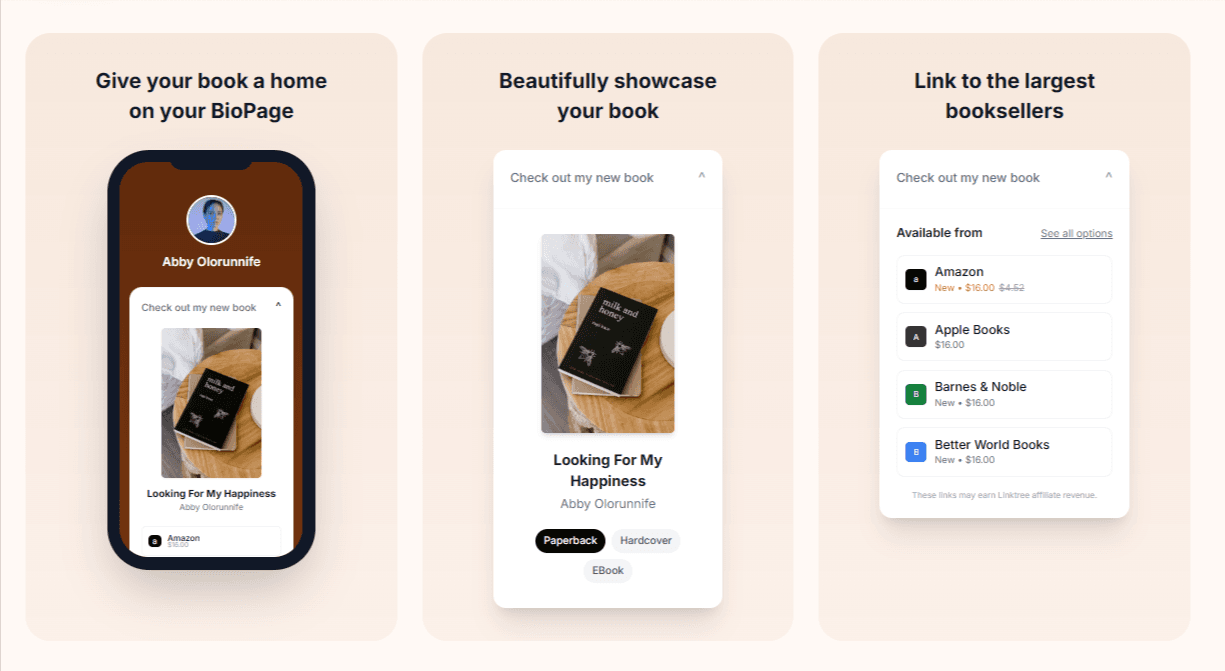
The solution? A Lnkk.it with the Books app. One link that displays your book beautifully and lets readers choose their preferred retailer. Let's walk through exactly how to set it up.
Step 1: Create Your Lnkk.it Account
If you haven't already, head to Lnkk.it and sign up for a free account. The entire Books feature is available on the free tier—no credit card required.
Pro Tip: Choose Your Username Wisely
Your Lnkk.it URL will be lnkk.it/yourusername. For authors, we recommend:
Your author name: lnkk.it/janedoeauthor
Your book series: lnkk.it/darktowerseries
Your brand: lnkk.it/thrillerwriter
Keep it short, memorable, and consistent with your other social handles.
Step 2: Navigate to the Live Editor
Once logged in, click on "Dashboard" in the navigation, then select "Live Editor." This is where you'll build and customize your entire Lnkk.it—including adding books.
The Live Editor shows a real-time preview of your page on the right side, so you can see exactly how your books will appear to visitors.
Step 3: Add a New Book
In the left sidebar of the Live Editor, you'll see an "Add" button. Click it and select "Book" from the dropdown menu. This opens the Books modal—the command center for showcasing your literary works.
The Quick Add Method (Recommended)
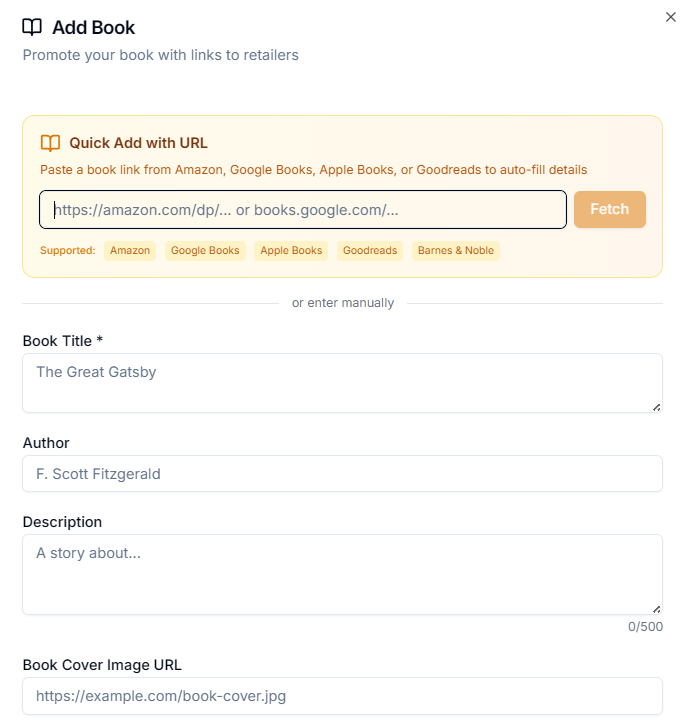
If your book is already on Amazon, Goodreads, or another major platform, you can auto-import all the details:
Copy your book's URL from Amazon, Goodreads, or your preferred platform
Paste it into the "Quick Add with URL" field
Click "Fetch Book Details"
Lnkk.it automatically pulls: title, author, description, cover image, and available retailers
This saves you 10+ minutes of manual entry and ensures accuracy.
The Manual Entry Method
Prefer to enter details yourself? No problem. Fill in these fields:
Book Title: Your book's full title
Author Name: Your name (or pen name)
Description: A compelling 2-3 sentence hook
Cover Image: Upload your high-resolution book cover
Category: Genre or category (e.g., "Fiction," "Self-Help," "Memoir")
Step 4: Add Your Retailers
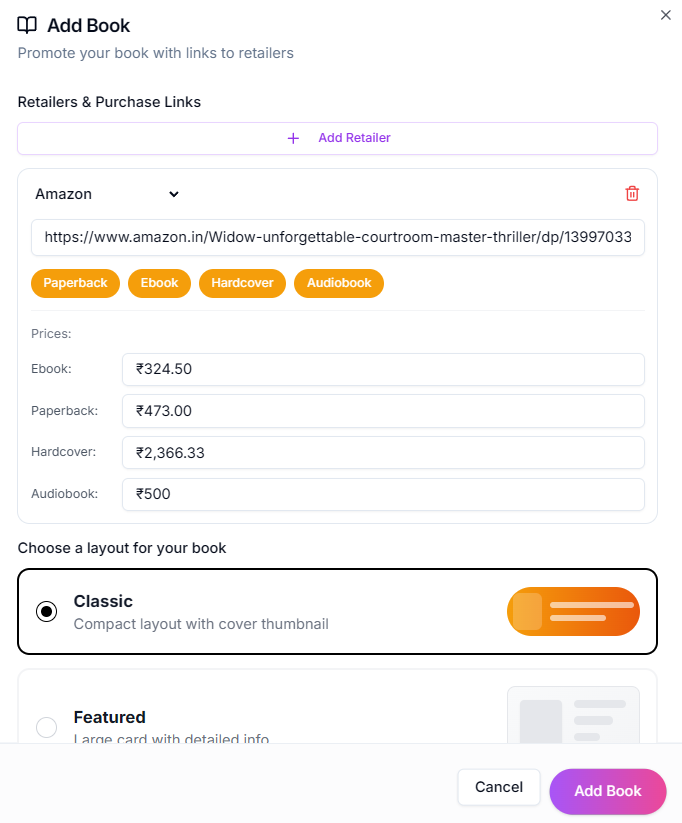
This is where Lnkk.it shines. You can add multiple retailers so readers can choose their preferred platform.
Supported Retailers
Lnkk.it supports all major book retailers:
Amazon (including regional variants: .com, .co.uk, .ca, .au, etc.)
Apple Books
Barnes & Noble
Kobo
Google Play Books
Audible (for audiobooks)
Bookshop.org (supports indie bookstores)
IndieBound
Your own website/store
Custom links for any other retailer
Adding a Retailer
Click "Add Retailer" in the Books modal
Select the platform from the dropdown
Paste the direct link to your book on that platform
Choose the format: Paperback, Hardcover, eBook, or Audiobook
Optionally add the price (this displays to visitors)
Repeat for each retailer where your book is available. We recommend adding at least 3-4 options to maximize conversions.
Step 5: Choose Your Display Style
Lnkk.it offers two layout modes for books:
Classic Layout
A clean, card-based design that shows your book cover, title, author, and a list of retailer buttons. This works well when you have multiple books and want a consistent, scannable look.
Featured Layout (Pro)
A larger, more prominent display that puts your book front and center. Ideal for new releases, bestsellers, or when you only have one book to showcase. The cover is bigger, and the description is more visible.
Step 6: Customize Settings
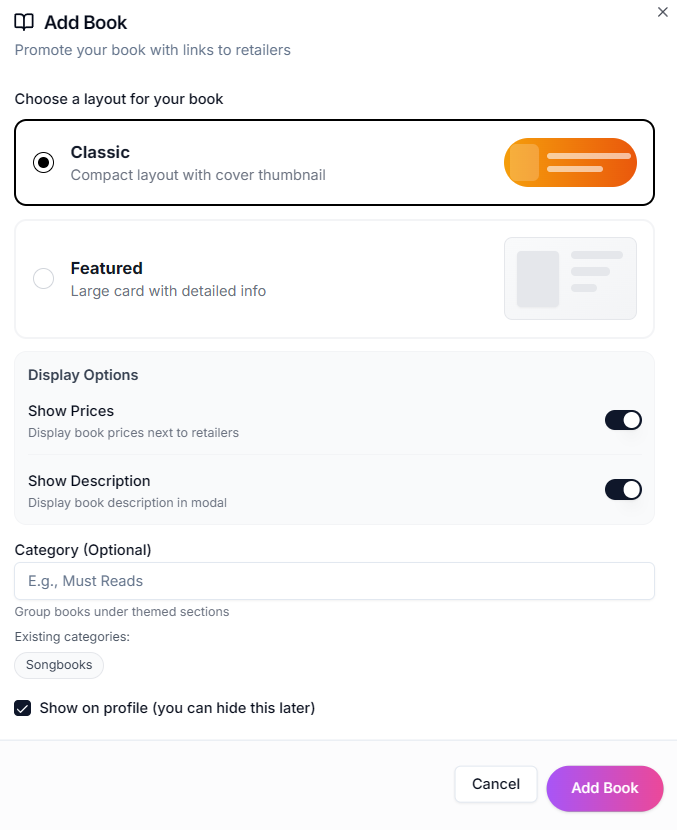
Fine-tune how your book appears with these options:
Show Prices: Toggle on to display prices next to each retailer. Great for highlighting deals or comparing formats.
Show Description: Toggle on to display your book's blurb directly on your Lnkk.it.
Section Heading: Add a custom heading above your book (e.g., "My Latest Release," "Award-Winning Novel," "Free eBook").
Show on Profile: Control visibility. Hide a book temporarily without deleting it.
Step 7: Save and Preview
Click "Save Book" to add it to your Lnkk.it. The preview on the right updates instantly. Check how it looks on both desktop and mobile views—remember, most of your traffic will be from mobile devices.
Pro Tips for Maximum Book Sales
1. Lead with Your Best Format
Put your most profitable or popular format first in the retailer list. For most authors, this is Kindle/eBook for volume or paperback for profit margin.
2. Use Strategic Section Headings
Don't just say "My Books." Create urgency and interest:
"🔥 New York Times Bestseller"
"📚 Where to Buy My New Release"
"🎧 Now Available on Audible"
"💰 Free eBook This Week"
3. Add Multiple Books If You Have Them
Have a backlist? Add all your books! Readers who discover one book often want more. Organize them with section headings like "The Mystery Series" or "My Latest Releases."
4. Update for Launches and Sales
Running a Kindle Countdown Deal? Update your Lnkk.it to feature that book prominently. Post-launch, swap it for your evergreen bestseller.
5. Track Your Clicks
Use Lnkk.it's built-in analytics to see which retailers get the most clicks. If Amazon dominates, consider featuring it more prominently. If readers ignore one platform, maybe remove it to reduce choice overload.
Real Results: What Authors Are Seeing
Authors using Lnkk.it's Books feature report:
35% increase in sales from social media traffic
Higher conversion rates because readers choose their preferred retailer
More reviews from readers who actually finish books (they bought on their favorite platform)
Simplified marketing—one link to share everywhere
Common Questions Answered
Is the Books feature free?
Yes! The core Books feature is completely free. The Featured layout is available on Lnkk.it Pro, but the Classic layout works great for most authors.
Can I add audiobooks?
Absolutely. Select "Audiobook" as the format when adding a retailer. Audible and other audiobook platforms are fully supported.
What about self-published books?
Lnkk.it works perfectly for indie authors. Add your Kindle Direct Publishing link, your website, Gumroad, or any platform where your book is sold.
Can I add books from multiple authors?
If you're an anthology contributor or have co-authored works, yes—you can add any book and customize the author field accordingly.
Start Showcasing Your Books Today
Your book deserves more than a single Amazon link. Give readers the choice they want, display your cover beautifully, and track what's working—all from one Lnkk.it.
Create your free Lnkk.it and add your first book in under 5 minutes. Your readers are waiting.
YOU MAY ALSO LIKE
How to Embed Typeform on Your Bio Link Page (Step-by-Step Guide)
Learn how to embed Typeform surveys, quizzes, and application forms directly on your Lnkk.it bio page. Collect leads, feedback, and applications without visitors ever leaving your profile.
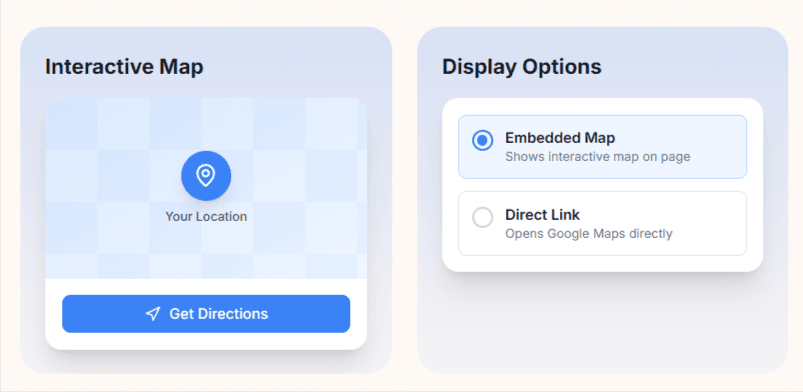
How to add a Google Maps link to your Lnkk.it