How to add a Google Maps link to your Lnkk.it

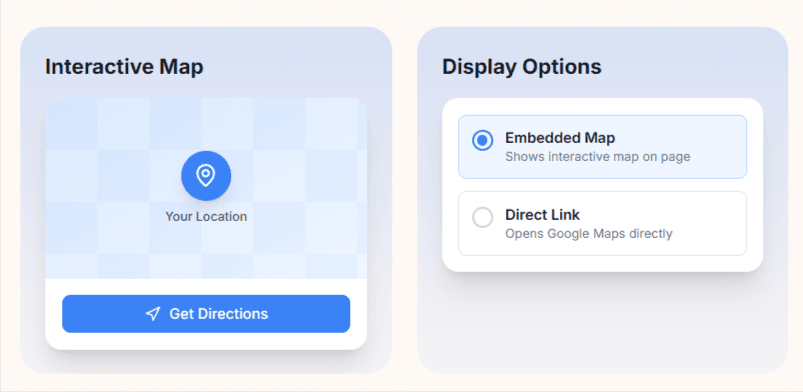
Make it easy for your audience to find you! Whether you're a business owner, event organizer, or content creator with a physical location, adding an interactive Google Map to your Lnkk.it helps visitors get directions with just one tap.
Why Add Google Maps to Your Lnkk.it?
📍 Increase foot traffic – Customers can find your store, office, or venue instantly
🗺️ Interactive experience – Visitors can explore the area and get directions
✨ Professional look – Beautiful embedded maps that match your brand
📱 Mobile-friendly – One-tap navigation on any device
Step-by-Step Guide
Step 1: Get Your Google Maps Link
Open Google Maps
Search for your business or location
Click Share → Copy link Example:
https://maps.app.goo.gl/vTUxdpKvU19k1Go68
Step 2: Add to Your Lnkk.it
Go to your Dashboard → Links
Click + Add button
Select Google Maps from the options
Paste your Google Maps URL
The place name will be auto-detected ✨
Step 3: Customize Your Map
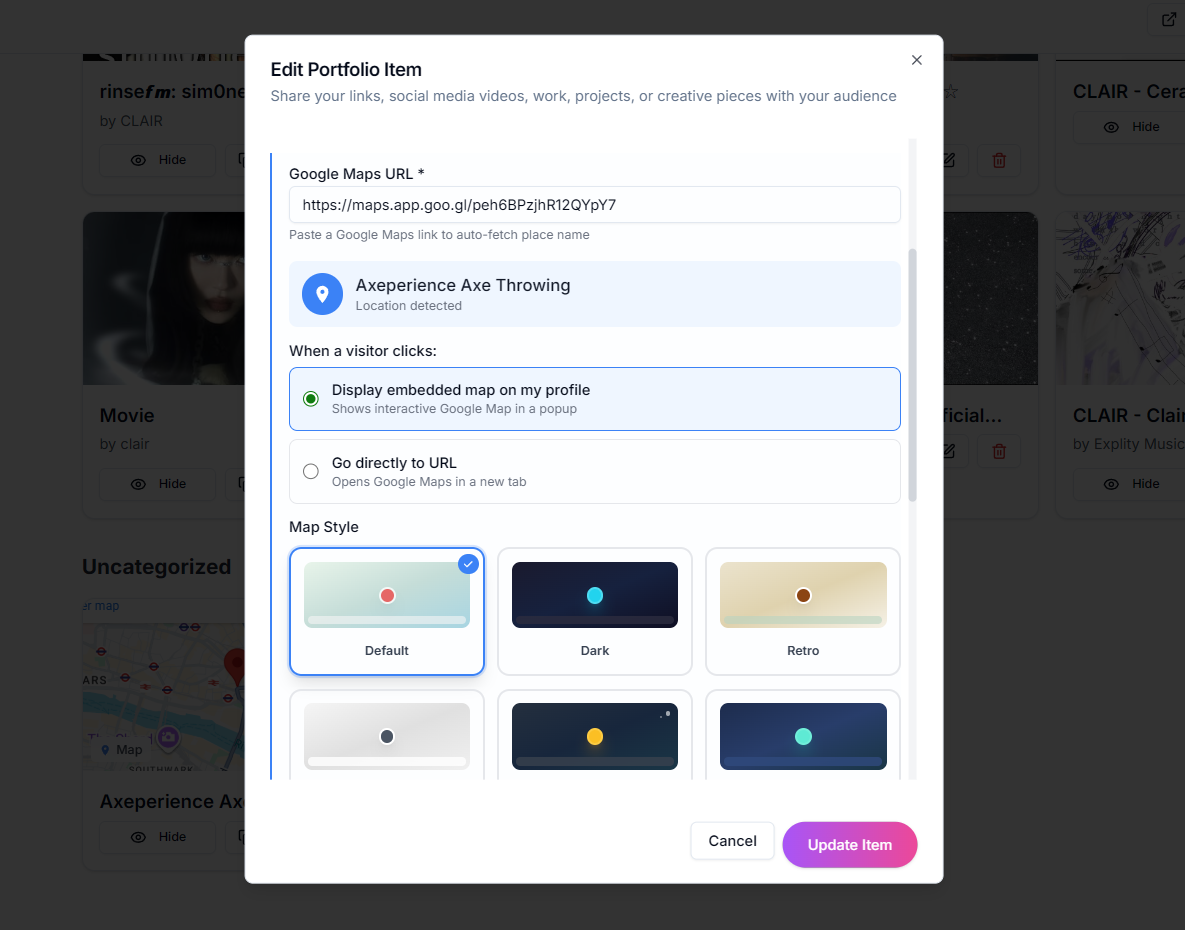
Choose a display mode:
Embedded Map – Shows an interactive map directly on your profile
Direct Link – Opens Google Maps in a new tab
Pick a style:
Default (blue)
Dark Mode
Retro
Silver
Night
Aubergine
Select a layout:
Classic – Compact card with map thumbnail
Featured – Large map with directions button
Step 4: Save and Preview
Click Add Item and visit your profile to see your beautiful new map!
Tips for Best Results
💡 Use your business name – Search for your business on Google Maps to get a link with rich information
💡 Short URLs work great – The short maps.app.goo.gl links are easier to share
💡 Match your theme – Choose a map style that complements your Lnkk.it colors
💡 Add to a category – Organize your map under a section like "Visit Us" or "Location"
YOU MAY ALSO LIKE
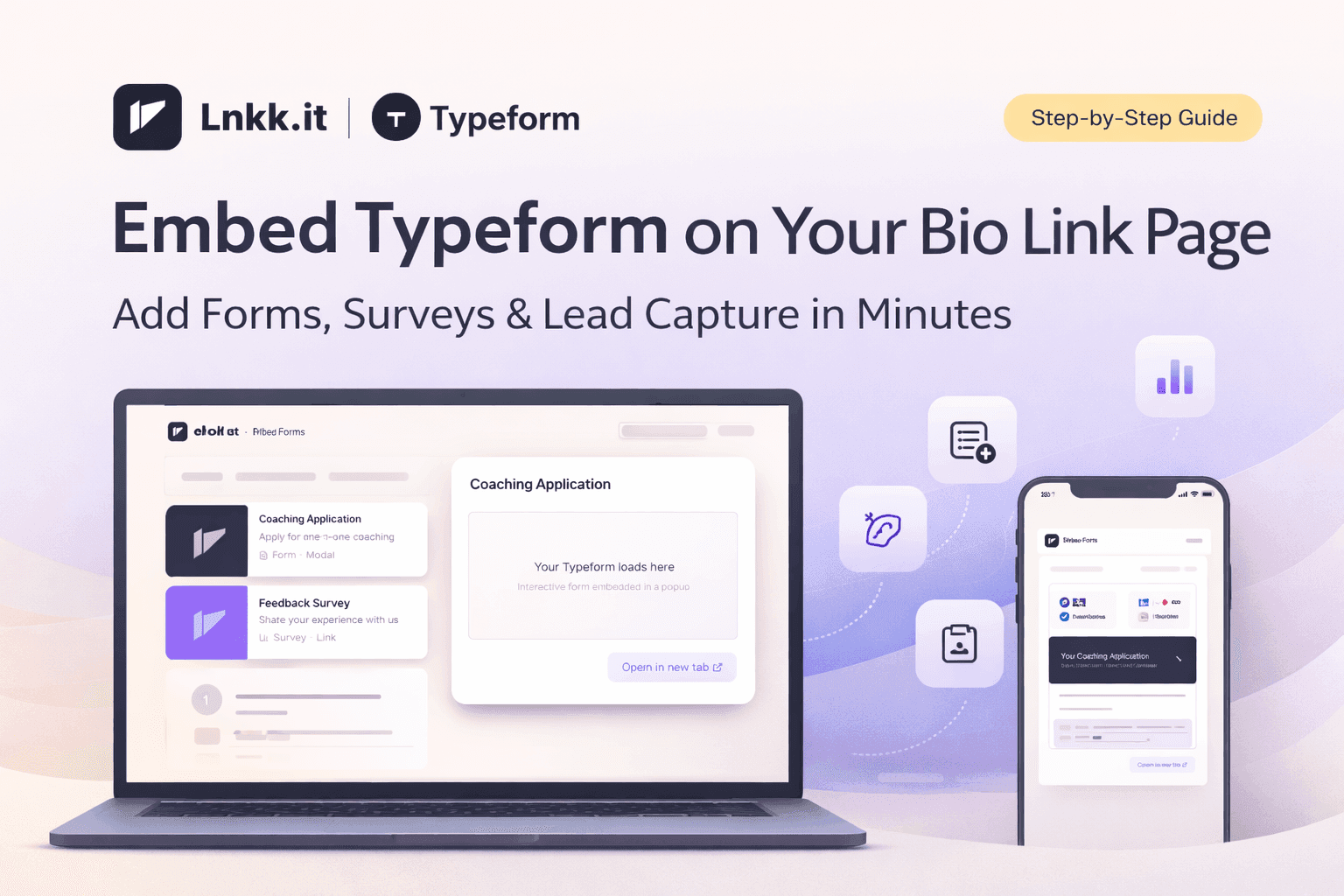
How to Embed Typeform on Your Bio Link Page (Step-by-Step Guide)
Learn how to embed Typeform surveys, quizzes, and application forms directly on your Lnkk.it bio page. Collect leads, feedback, and applications without visitors ever leaving your profile.
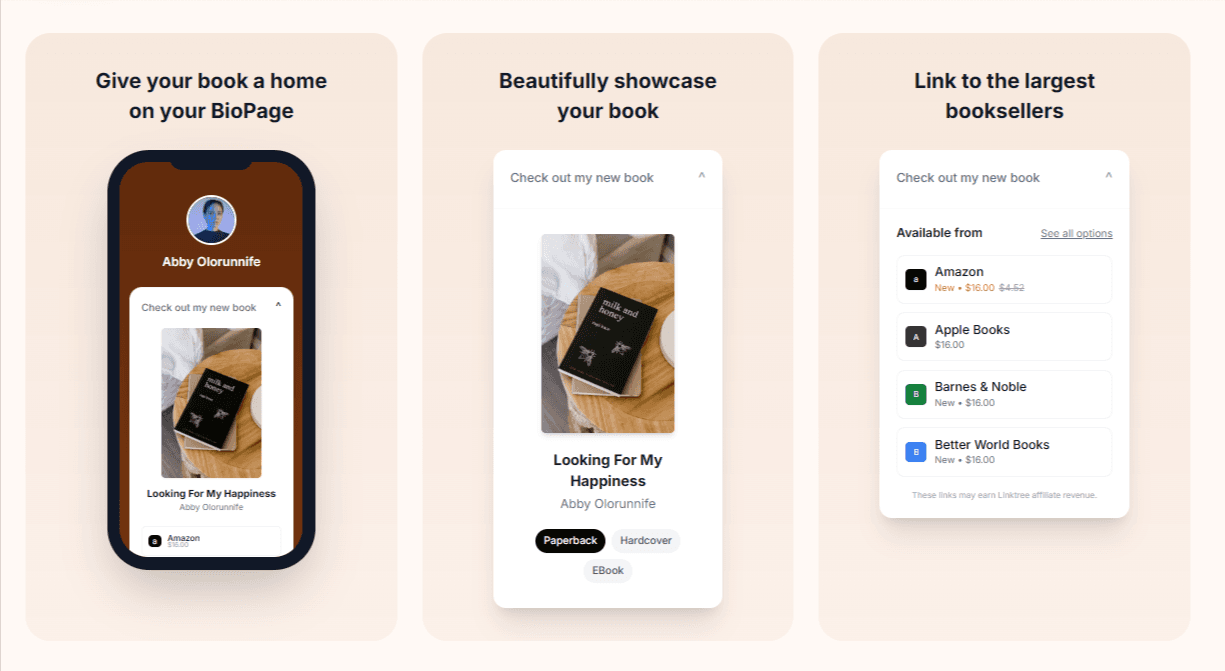
How to Add Books to Your Lnkk.it: The Complete Step-by-Step Guide for Authors
Learn exactly how to add your books to Lnkk.it with this complete step-by-step guide. Display beautiful covers, link to multiple retailers, and give readers the buying experience they want.